


SETUP GUIDE
SET UP YOUR RACE DISPLAY
From box to live timing in about 5 minutes. Five steps, no account.


BEFORE YOU START
WHAT IS IN THE BOX
- Race Display with built-in USB cable
- USB power adapter for your country
- Desk stand
- Welcome card
Something missing or damaged? Contact us before setup.
DOWNLOAD THE APP
Install Petrol Vibes Race Display on your phone. It is free and you do not need an account. You will use it for setup and for any settings later.Install Petrol Vibes Race Display. It is free and needs no account.
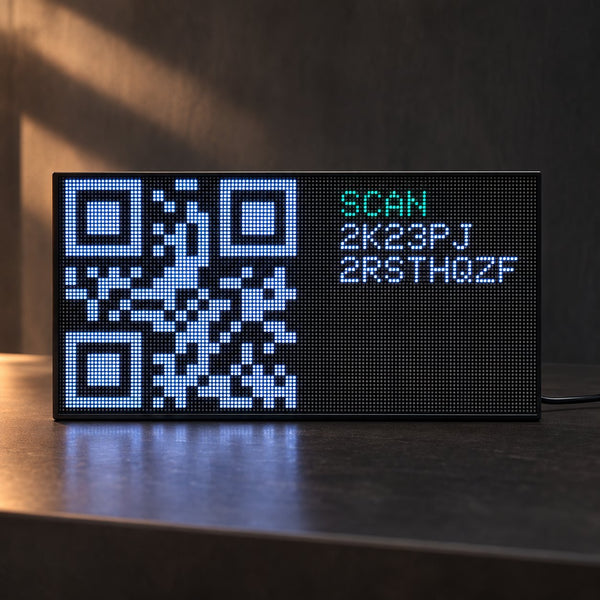
PLUG IN AND POWER ON


Connect the display's cable to the power adapter and plug it into a wall outlet. On first start the screen shows a QR code - leave it on for the next step.Connect the display's cable to the adapter and plug it in. On first start the screen shows a QR code - leave it on for the next step.
CONNECT TO WIFI
The app walks you through it - about a minute.

1. Scan the code on the display - or type the display name and setup code shown on it.

2. Join your Race Display. Your phone may say No Internet - that is normal.

3. Pick your 2.4 GHz home network.

4. Enter your WiFi password. It is case-sensitive.

5. Wait for Connecting, then Online. That is it.
CHOOSE WHAT YOU SEE
Race mode is automatic: when a session starts, the display switches to live timing on its own. In the app you choose what it shows the rest of the time.Race mode is automatic: when a session starts, the display goes live on its own. In the app you choose what it shows the rest of the time.

Screens between races
Screens between races. Turn on any of: countdown with weather, standings, results or starting grid, GAINED, track map and facts, On this day.Turn on any of the 5 screens: Countdown, Next track, Driver standings, Team standings and Last race result.

Screen time and places shownScreen time
Screen time and places shownScreen time. Screen time: 10, 15, 20 or 30 seconds per screen. Places shown: top 5, 10, 15 or 20. 10, 15, 20 or 30 seconds per screen. Top 5, 10, 15 or 20.

Stream delay
Stream delay. Watching on a stream that runs behind? Delay the display by 0 to 120 seconds so it matches - no spoilers. 0 to 120 seconds, so the display matches your stream - no spoilers.

Race alerts
Race alerts. Flags, overtakes and battles take over the screen for a few seconds during a race. Flags, overtakes and battles take over the screen for a few seconds.

PLACE IT
Put it where you can see it from your seat on race day - next to the TV, on your desk or on a shelf.
GOOD TO KNOW
READING YOUR DISPLAY

- LIVE and lap counter - at the top, so you always know how many laps are left.
- P - the position.
- DRIVER - the driver, in their team colour.
- +/- - places gained or lost since the start.
- INT - the gap to the car in front.
- TYRE - the tyre the driver is on.
- Status line - at the bottom: battles with the gap between the two cars, SAFETY CAR, NO OVERTAKING and more.
OVERTAKE (top 10, pit stops filtered out), BATTLE (two cars within 1 second for two laps), SAFETY CAR, VIRTUAL SC, RED FLAG, GREEN FLAG and the chequered flag with the winner.
GRID before the start, or DELAYED if the start is held. After the finish: final top 5, then the standings with arrows for who moved up.
The best laps, through Q1, Q2 and Q3.
The display plays the starting lights every time you switch it on.
Full-screen alerts
OVERTAKE (top 10, pit stops filtered out), BATTLE (two cars within 1 second for two laps), SAFETY CAR, VIRTUAL SC, RED FLAG, GREEN FLAG and the chequered flag with the winner.
Before and after the race
GRID before the start, or DELAYED if the start is held. After the finish: final top 5, then the standings with arrows for who moved up.
Practice and qualifying
The best laps, through Q1, Q2 and Q3.
Starting lights
The display plays the starting lights every time you switch it on.
TROUBLESHOOTING
SOMETHING NOT WORKING?
The screen stays blank after plugging inThe screen stays blank
Check that the cable is pushed fully into the adapter and the adapter is in a working wall outlet. Use the adapter from the box - laptop USB ports and weak phone chargers may not give it enough power. Still blank? Email us. [developers confirm]
My WiFi network does not appear or will not connectWiFi will not connect
Race Display connects to 2.4 GHz networks only. If your router only broadcasts 5 GHz, turn on 2.4 GHz in its settings. Networks with a login page (hotel, guest or office WiFi) will not work. The password is case-sensitive. Try moving the display closer to the router. [developers confirm]
A session has started but the display is not liveA session started but it is not live
[developers confirm - how soon live timing starts after a session begins, and what to check]
The countdown shows the wrong time
Session times follow your phone's time zone. Check the time zone on the phone you used for setup, then open the app. [developers confirm]
I changed my WiFi or router
[developers confirm - how to move the display to a new network]
A second phone cannot control the displayA second phone cannot control it
[developers confirm - can more than one phone control a display, and how to add one]
How do I factory reset the display?How do I factory reset it?
[developers confirm - reset steps]
FAQ
FREQUENTLY ASKED
Is there a subscription?
No. There is no subscription and no monthly fee. Live timing, alerts, the between-race screens and updates are all included.
How often does the data update?
Every 4 seconds during practice, qualifying and the race.
What does it show in the off-season?
It counts down to the new season and keeps rotating through the screens you pick in the app: standings, track facts and a racing history moment every day.
Does the app need to stay open?
No. After setup the display runs on its own over WiFi. You only need the app to change settings and to get session reminders.
How do software updates work?How do updates work?
They install automatically over WiFi. Do not unplug the display while it is updating - it can take up to [x] minutes.
Will more racing series be added?
[developers confirm]
SPECS, SAFETY AND COMPLIANCE
TECHNICAL AND LEGAL INFORMATIONTECHNICAL AND LEGAL
STILL STUCK? WE WILL HELP
Email [email protected] - a real person replies within 24 hours. Include your order number and a photo of the screen.